Key Takeaways
- How to upload an app on the Google Play Store?
You need to create a developer account, prepare your app assets and details, complete the content rating, upload your APK or app bundle, and publish through the Play Console.- What are the main Play Store app publishing steps?
The process includes setting up a developer account, creating your app listing, uploading the app file, completing the required forms, and choosing a release type before submitting for review.- How much does it cost to publish on Google Play?
It costs a one-time fee of $25 USD to register a developer account and start publishing apps on the Play Store.
In the vast world of mobile technology, launching your Android app on the Google Play Store is a big win! Every day, more than 3.55 million apps are available, and over 3,000 new ones are getting launched. But don’t worry; using the right tools and having a solid publishing strategy can help your app shine.
The big question is, how to upload an app to the Google Play Store and what steps are involved in the Play Store app publishing process. In this guide, we’ll walk you through every step, from setting up your account to finally hitting the “Publish” button. We’ll also answer a common question: how much does it cost to publish on Google Play?
Let’s get started.
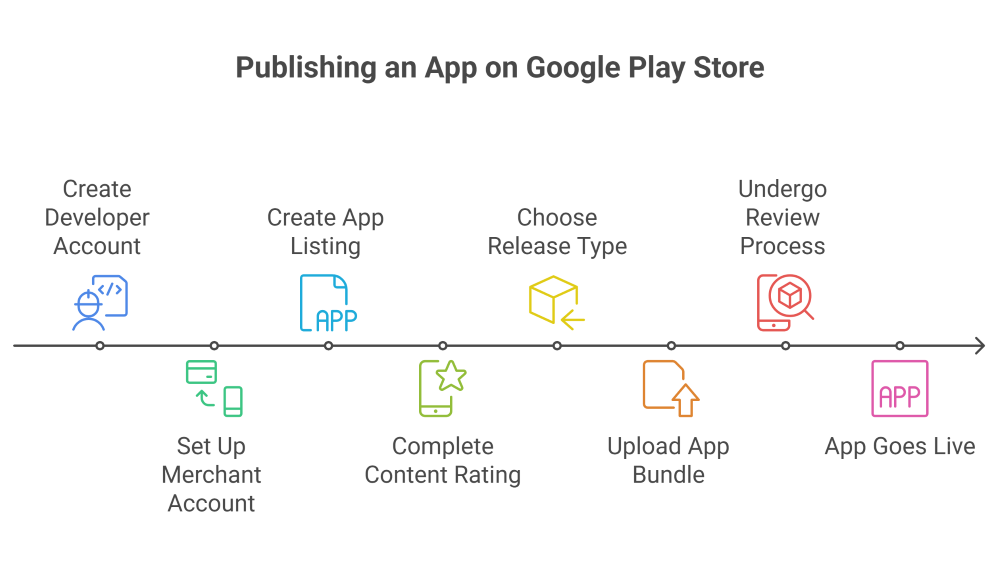
Table of Contents
Why Uploading to Google Play Store Is Important
Before starting on the Play Store app publishing steps, it’s important to understand the value of being on the platform. Google Play gives developers direct access to billions of Android users around the world. Doesn’t matter what you’ve created, publishing your app on the Play Store brings you visibility, credibility, and global reach.
But, to gain actual results, you need preparation and a structured approach.
If you’re still shaping your product before launch, check out how we turn ideas into apps. Our proven process ensures every step, from concept to code, is aligned with your goals. Let us help you bring your vision to life with clarity and confidence.
Step 1: Create a Google Play Console Developer Account
To publish an app, you need a Google Play Console developer account. simply follow these steps:
- Go to Google Play Console
- Sign in with your Google account or create a new one
- Pay a one-time registration fee (This answers the burning question: how much does it cost to publish on Google Play? It’s surprisingly affordable!)
Once you’ve filled in your developer profile and completed the payment, Google will review and activate your account, which usually takes 48 hours.
Step 2: Set Up a Google Merchant Account (If You Plan to Sell)
To monetize your app through in-app purchases or paid downloads, you’ll need a Google Merchant Account.
- Visit the Google Play Console
- Go to “Set up a merchant account”
- Enter your business details to create and link the account
This way, you can receive payments and view sales reports directly in your developer dashboard.

Step 3: Create Your Application in Google Play Console
Once your developer account is ready, it’s time to create your app listing.
- Click on “All apps” and then “Create app”
- Enter your app name (up to 30 characters)
- Choose the app’s default language
- Select whether it’s an app or a game, and mark it as free or paid (note: you can’t change free to paid after publishing)After agreeing to
- Google’s Developer Program Policies and export laws, click “Create App” to begin filling out your store listing.
Step 4: Fill Out Your App Store Listing
This is where your app starts to come alive for your users. You’ll need to provide key details that describe your app and attract potential downloads.
Required fields include:
- App Name
- Short Description (80 characters max)
- Full Description (up to 4000 characters; this is where SEO matters)
- Screenshots (2–8 in JPG or PNG format, max ratio 2:1)
- High-res Icon (512 x 512 pixels)
- Category and Tags (select relevant ones for discoverability)
- Contact Details (email, website, and support phone, if applicable)
- Privacy Policy URL (mandatory)
You can also add localized versions of your store listing if your app supports multiple languages.
Step 5: Complete the Content Rating Questionnaire
Google requires all apps to be rated for content. Failing to do this can result in your app being removed from the store.
To complete the rating:
- Go to the “App Content” section
- Click on “Start Questionnaire”
- Answer all questions honestly based on your app’s content
- Submit to generate a content rating
This rating helps users (and Google) understand whether your app is suitable for children, teens, or adults.
Step 6: Upload Your APK or App Bundle
Now comes the exciting part: uploading your actual app!
- Go to “Release” > “Production” > “Create New Release”
- Choose your release type: Internal testing, Closed testing, Open testing, or Production
- Upload your APK or App Bundle file
- Add release notes and version details
- Click “Save” and review your release
Make sure your app is under the 150 MB limit for compressed downloads or use Play App Signing to enable efficient delivery.
Step 7: Roll Out and Publish Your App
Once everything is in place:
- Click on “Review Release”
- Fix any warnings or missing fields
- Click “Start Rollout to Production”
- Confirm to publish
Congratulations! Your app is now submitted for Google’s review. While most apps are reviewed within a few hours, the process can take up to 7 days, depending on the complexity of your app.
Validating your app concept before you begin the Play Store publishing process can save you time, money, and disappointment. Make sure your app idea meets real user needs and market demands. Don’t just build, build smart.
What Happens After You Publish Your App on Google Play Store?
Publishing your app is just the beginning. Once live, focus on:
- Tracking performance via Google Play Console analytics
- Responding to user reviews
- Rolling out regular updates
- Implementing ASO (App Store Optimization) strategies to improve visibility
If you have a published app but aren’t actively managing it, it can quickly lose its edge. To keep up in today’s fast-paced market, think of your app as a living product that’s always evolving and getting better.
Final Thoughts on How to Upload an App on the Google Play Store
Now you know exactly how to upload an app on the Google Play Store, step by step. From setting up your developer account to the final “Publish” button, every part of the process is crucial to launching a successful mobile application.
And remember, while the Play Store app publishing steps may seem detailed, they’re all part of creating a secure, high-quality experience for users and helping your app get the recognition it deserves.
Whether you’re launching your first app or your fiftieth, the Play Store offers the tools to grow, analyze, and monetize effectively.